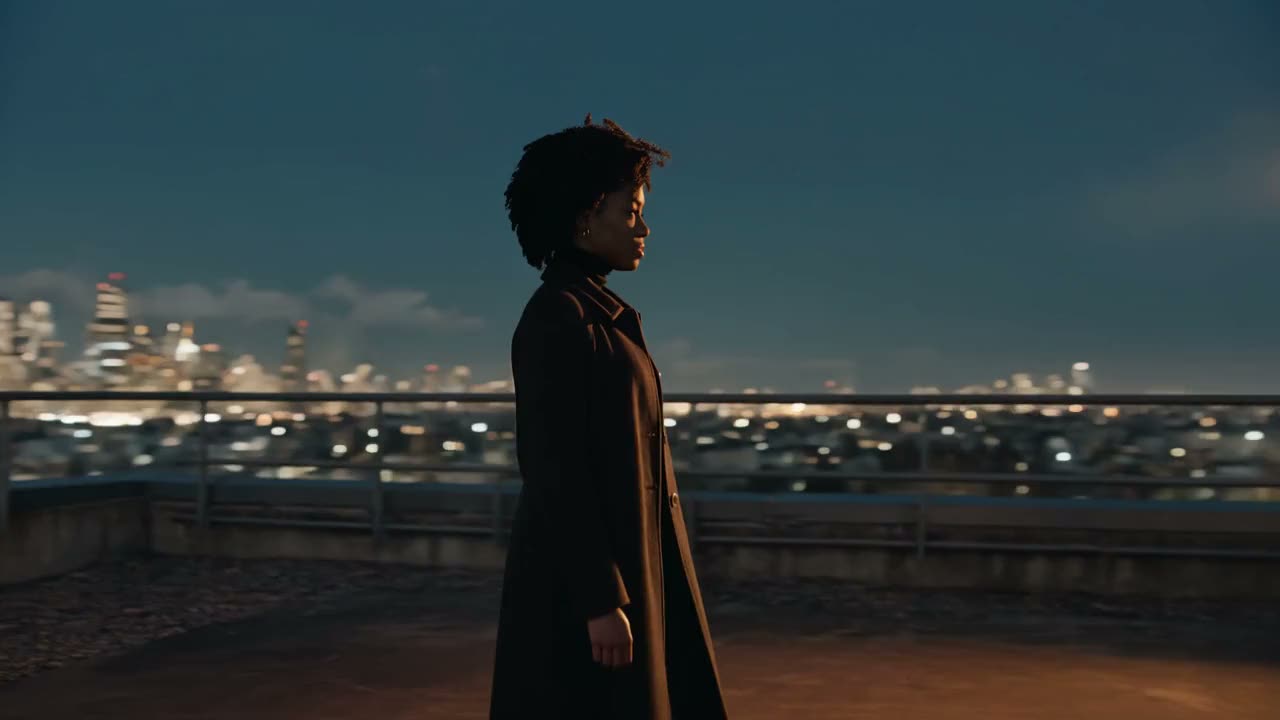
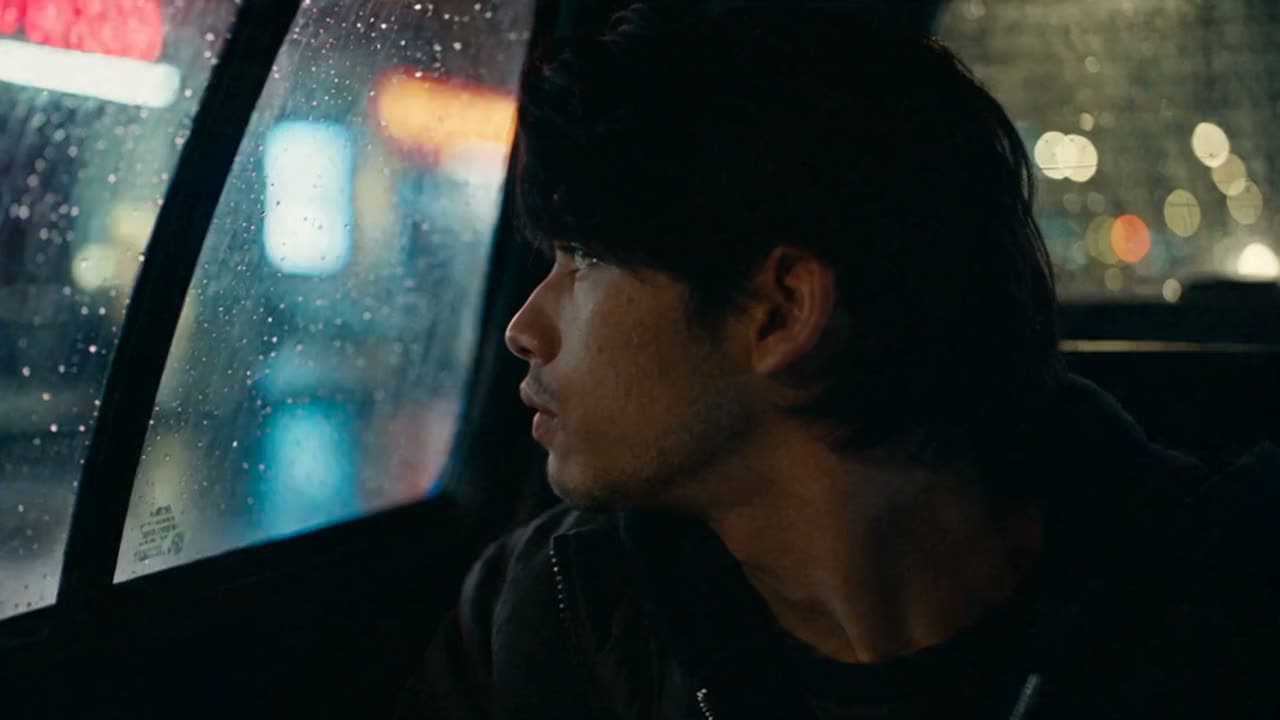
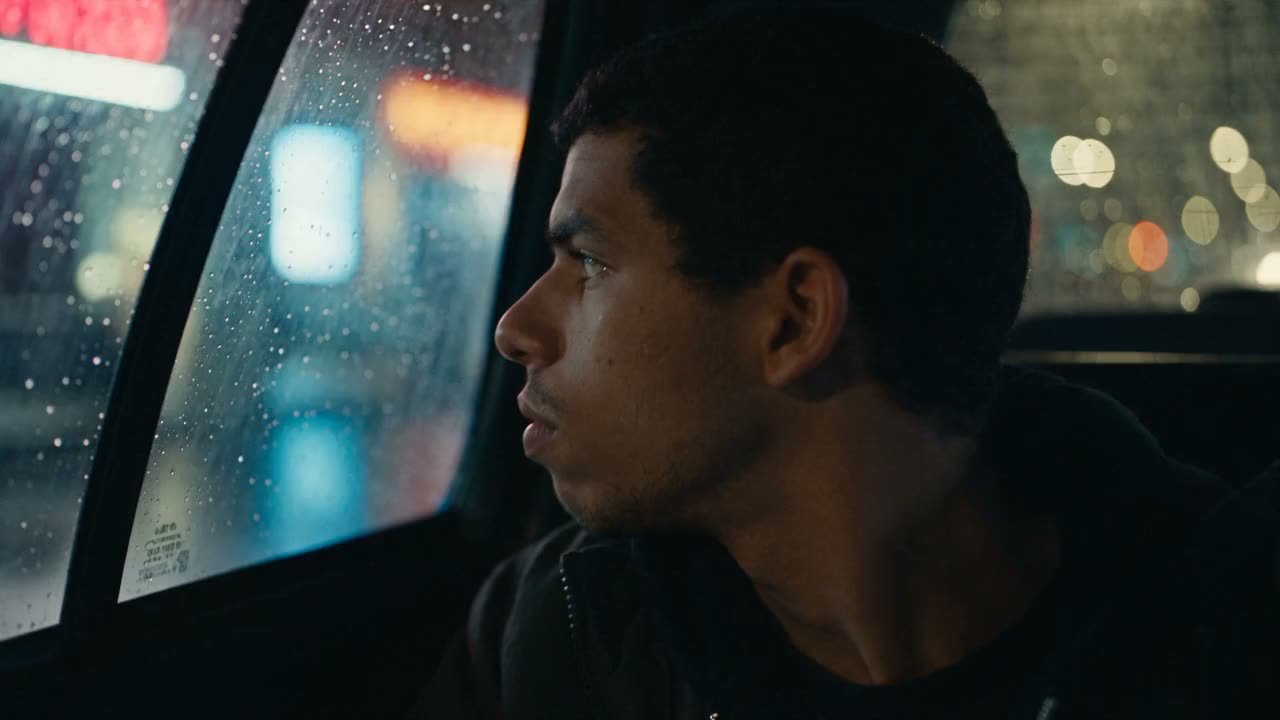
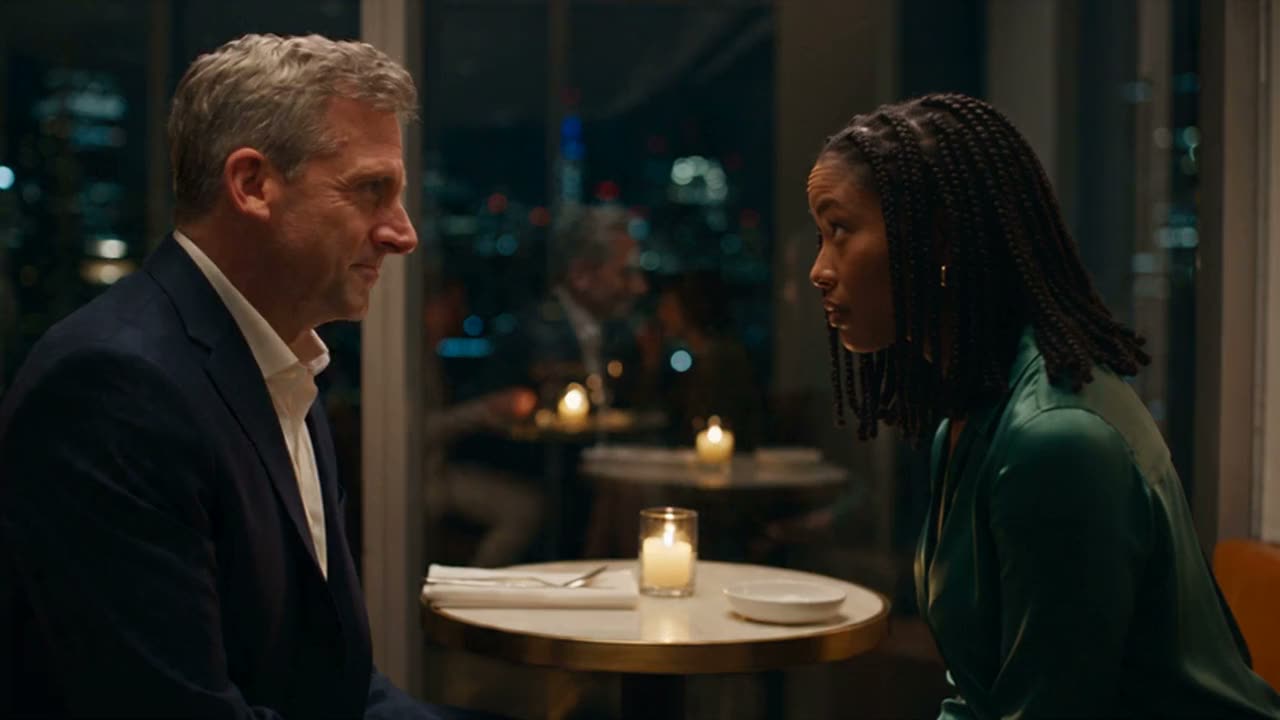
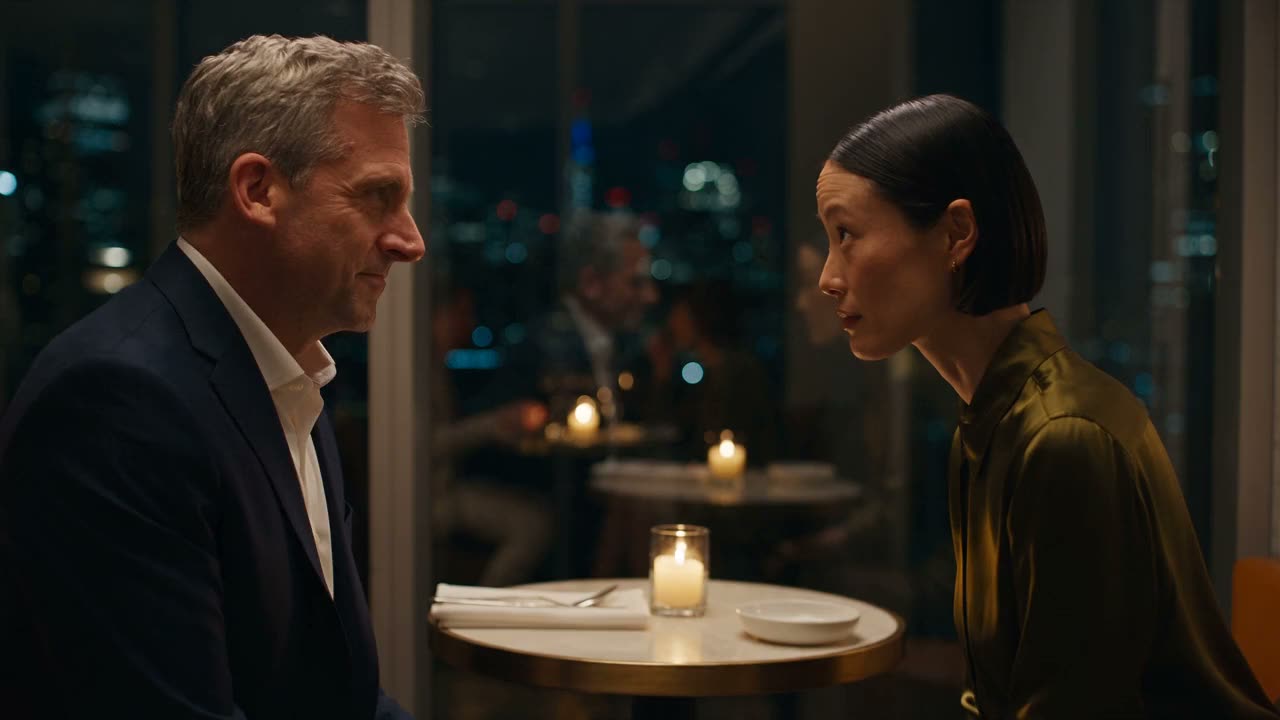
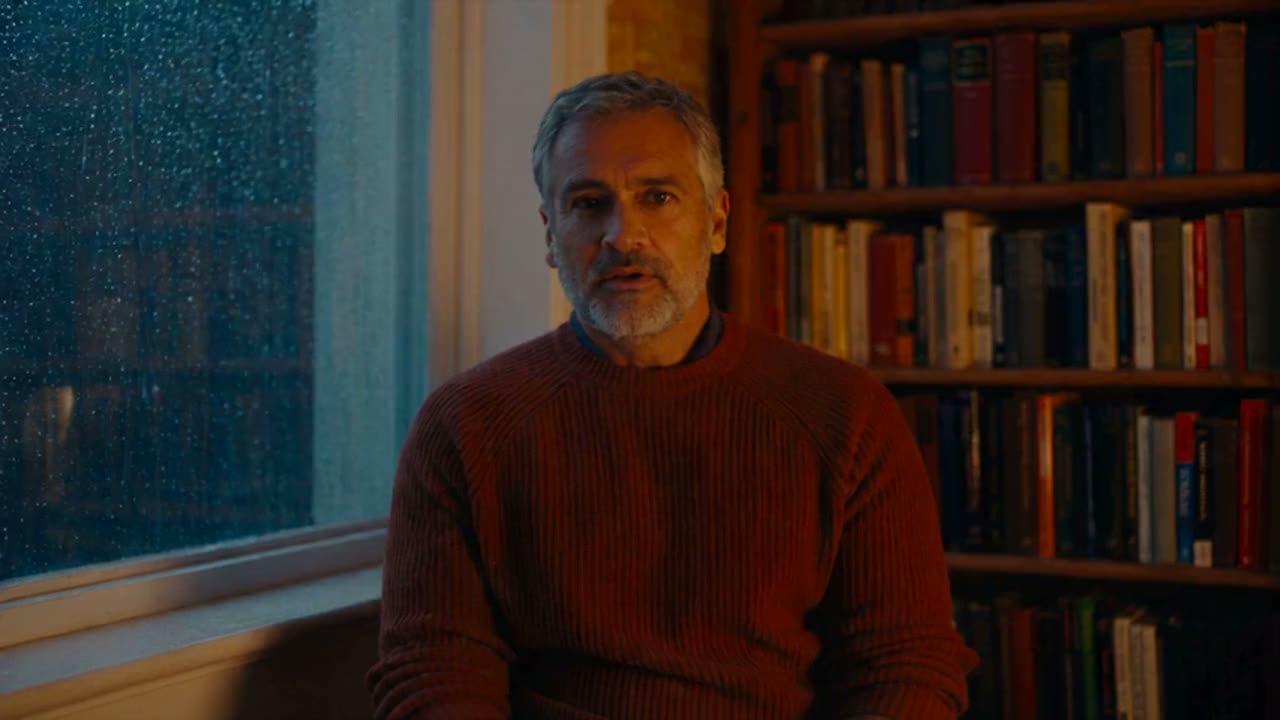
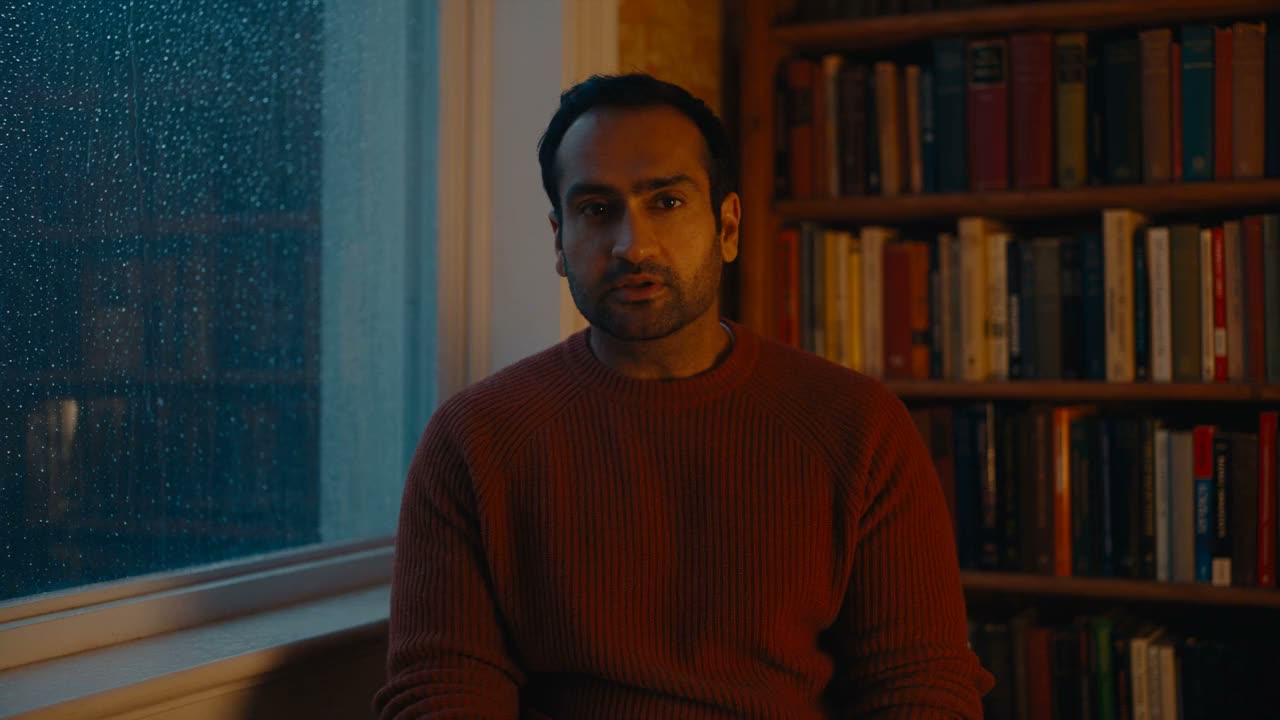
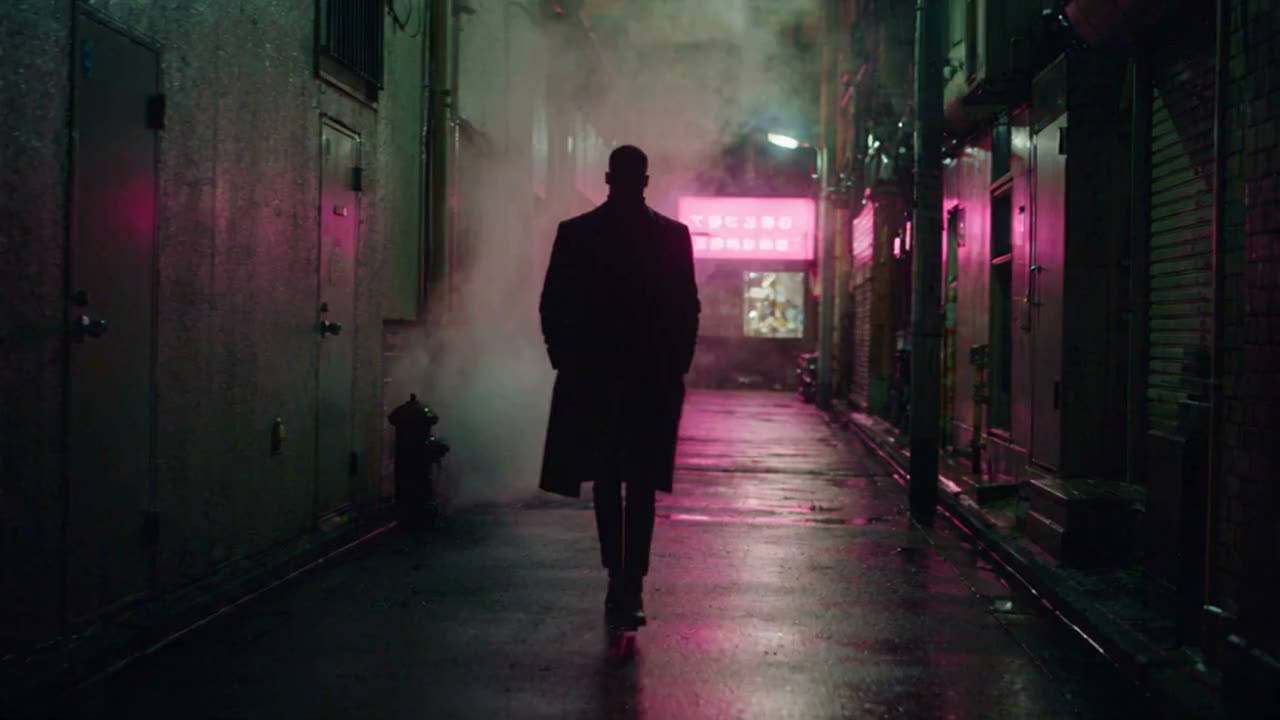
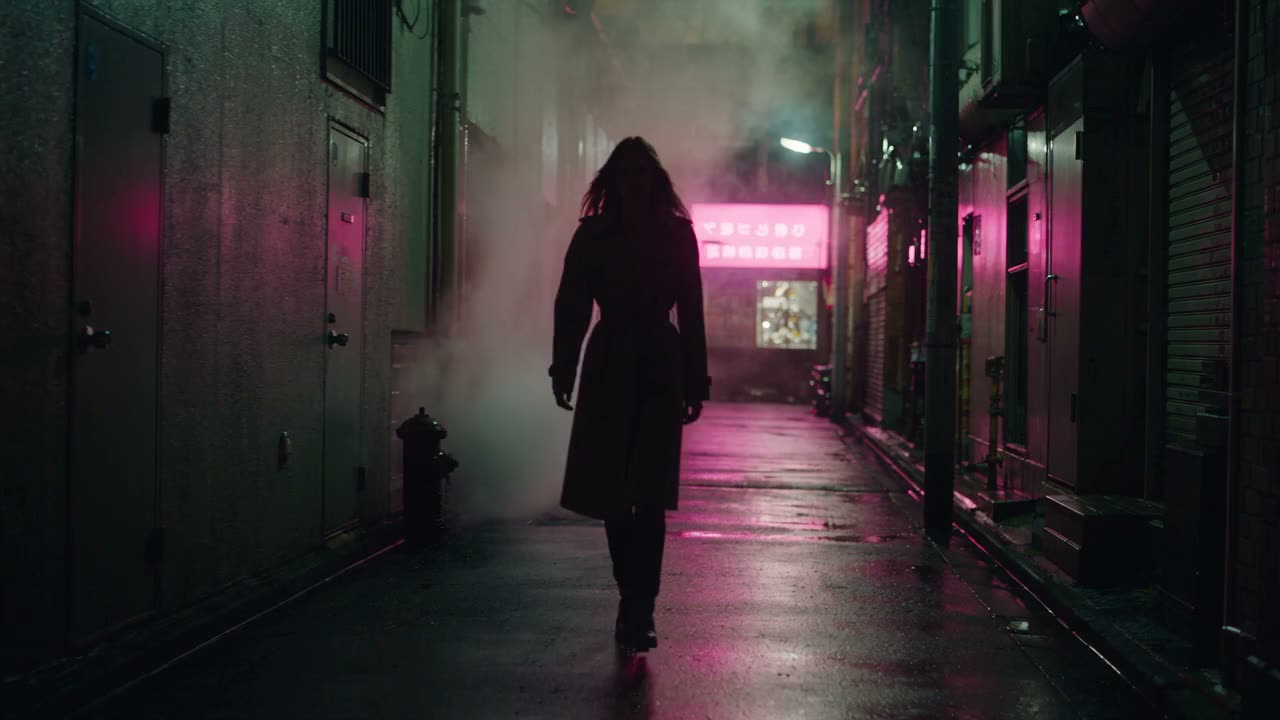
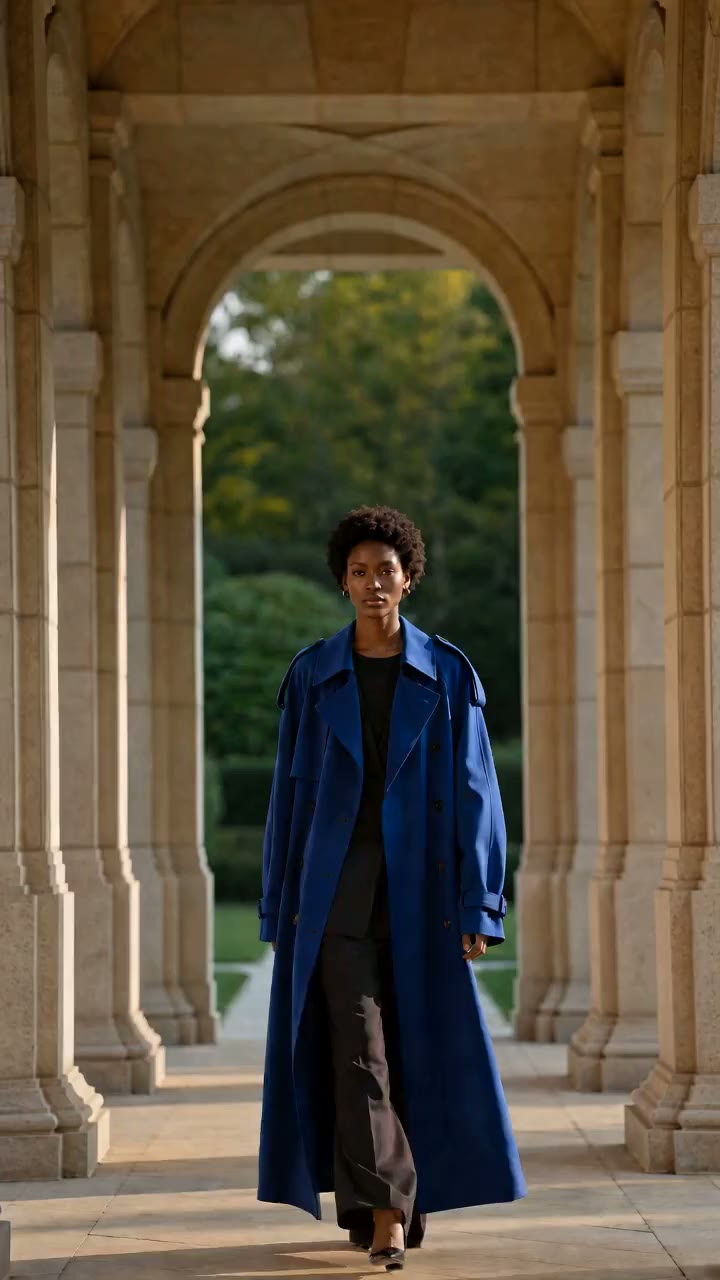
Swap faces in any video with a single photo. Choose who to replace, preview a frame, then remake the clip with the scene, the motion, and the original dialogue kept.
What makes this video face swap differentWhatmakesthisvideofaceswapdifferent
OriginalFace swap
01
A face swap that follows the whole shot
Many video face swap tools cut your clip into frames and paste a flat face onto each one. Restyle Studio works from your whole video instead. Remake video uses your original footage as the reference, so the camera moves, head turns, and lighting carry through the clip.
The result is generated, so fine details can differ from the source. Preview a frame first and judge the look before you commit to the full clip.
Before anything changes, Restyle Studio watches the whole video and lists each shot with its time range, the action, and any dialogue. Every person on screen appears as a small thumbnail in that text.
Click a thumbnail to jump to that moment and highlight each time that person appears. Right-click it and upload the photo to swap in. Everyone you did not choose stays as they were.
Sometimes a face is not enough. Use the same flow to replace the whole person on screen with someone from your photo, in every shot where they appear, while the background, the actions, and the other people stay put.
It is the quickest way to recast a role, swap a model in an ad, or put yourself in a scene. Only use photos of people who have agreed to it.
How to swap a face in a videoHowtoswapafaceinavideo
From the original clip to the swapped result in three steps.
Step 1
Upload your video
Sign in to Restyle Studio and upload an MP4 or MOV between 15 seconds and 3 minutes long, up to 300 MB. It is saved to the cloud and analyzed shot by shot.
Step 2
Choose a person and add a photo
Find the person in the analysis, right-click their thumbnail, and upload the photo to swap in. Use Remake frame to check one frame first.
Step 3
Remake and compare
Run Remake video, then drag the slider to compare the original with the result and download it.
Explore more VibePaper tools
Take your video further with the rest of VibePaper.
Practical guides and plain-language briefs on the models you can use here: what each one is good at, how to prompt it, and how to get a better result on the canvas.
Frequently asked questions about video face swapFrequentlyaskedquestionsaboutvideofaceswap
How do I swap a face in a video online?
Upload the video to Restyle Studio, find the person in the analysis, right-click their thumbnail, and upload the photo to swap in. Preview one frame with Remake frame, then run Remake video.
What is the difference between video face swap and character replacement?
A face swap changes only the face. Character replacement changes the whole person on screen to the one in your photo. Both use the same steps in Restyle Studio, and the scene, actions, and other people stay as they were.
Can I swap more than one face in a video?
Restyle Studio lists every person it finds in the video and you choose who to replace. People you do not choose are left as they are.
Does it keep the original background and dialogue?
Remake video uses your original footage as the reference and keeps the scene, the camera moves, the other people, and the dialogue. The result is generated, so fine details can differ from the source.
Will the face flicker in a moving video?
The video is remade from your original clip rather than pasted frame by frame, which helps the swapped face stay consistent through head turns and camera moves. Check the result with the slider, and use a clear, front-facing photo for the best match.
Can I preview before remaking the whole video?
Yes. Remake frame swaps the face in a single frame and shows it next to the original. Remake video only starts when you run it.
What videos can I upload, and what does it cost?
MP4 or MOV, 15 seconds to 3 minutes, up to 300 MB. Sign in with a VibePaper account. New accounts get 20 free credits on sign-up and 10 more for each daily check-in. Analysis and generation use credits, and the analysis price is shown before you start.
Can I put someone else’s face in my video?
Only with their permission, and not to impersonate or mislead anyone.
What happens to the videos and photos I upload?
They are used to run your project and are sent to the AI models that generate it, encrypted in transit. Each project stays in your Restyle Studio history, where you can delete it at any time.