AI Face Swap Online: Why Swaps Look Fake, and How to Fix It
When a face swap looks wrong, it is almost always one of four things, and none of them is a setting. A short diagnostic guide.
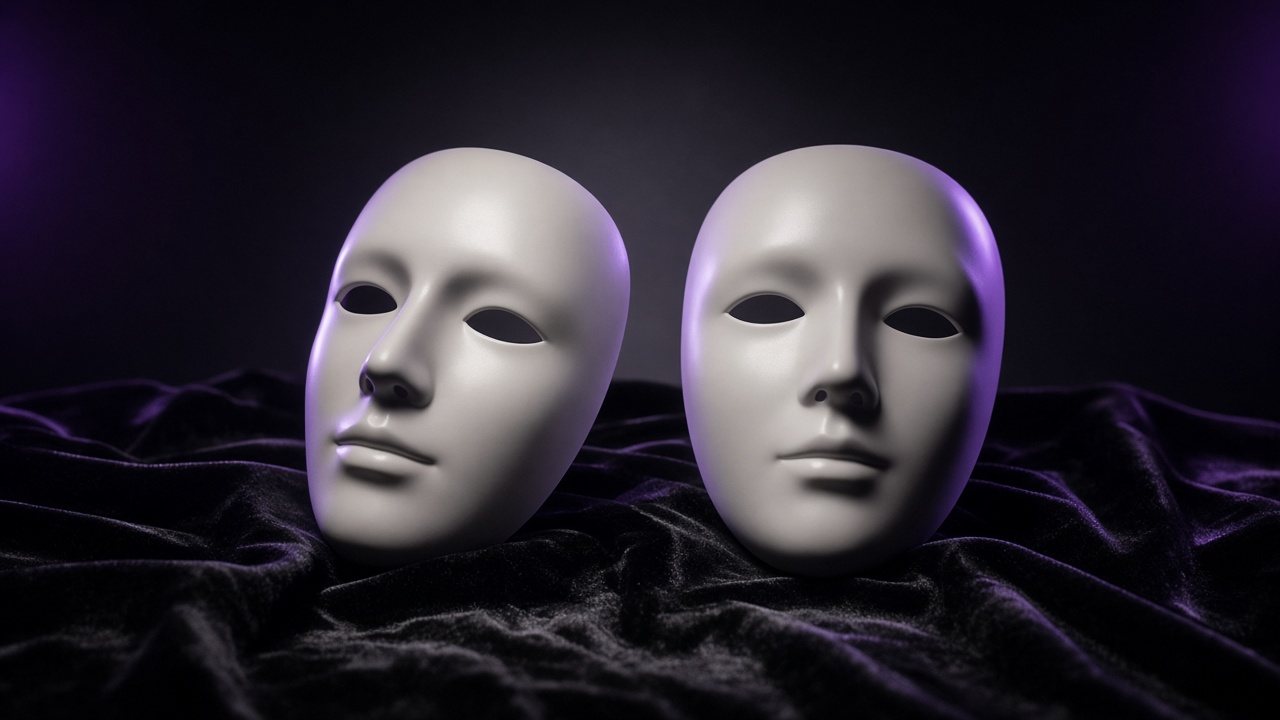
A face swap is two photos negotiating. The more they agree on angle, light and clarity, the less the AI has to invent, and invented detail is what makes a swap look pasted on.
Why your swap looks fake
| Symptom | Likely cause |
|---|---|
| Face looks flat or slightly “stuck on” | The light comes from different sides in the two photos. |
| Features look stretched | The face angles differ: a three-quarter view swapped into a straight-on portrait. |
| Blurry or waxy skin | A low-resolution or heavily compressed source photo. |
| Odd eyes or missing detail | Something covering the face: sunglasses, hair, a hand. |
The source photo, done right
Clear, front-facing, well lit, nothing over the face. JPG, PNG or WEBP up to 25 MB. A photo taken by a window in daylight beats a dim selfie every time, and a fresh camera image beats a screenshot of a screenshot.
Choosing the target
Look for a target whose face angle is close to your source. If your photo is straight-on, pick a straight-on portrait. Similar light direction helps for the same reason. This one choice fixes more swaps than anything else.
Match the angle first. Everything else is polish.
After the swap
The result lands on the canvas, so it can become a reference for more images or the first frame of an image to video shot. That is how you keep one face consistent across a whole campaign rather than swapping it in fresh every time.
Try AI Face SwapUpload a clear, front-facing photo to start.Questions
Which file types does face swap accept?
JPG, PNG or WEBP, up to 25 MB.